Connect your privacy inbox.
For requests that arrive by email.
Open ai.trustsuperset.com/dsars/email.
Your form covers consumers who fill out the webform. The privacy inbox covers everything else that reaches you by email: direct DSR requests, bulk opt-outs from authorized-agent services, and the inevitable regulatory or vendor correspondence. Superset classifies each one: DSRs route into your queue in DSR Manager; non-DSR emails forward to your responsible human triage contact (configured below).
You will see a three-step flow at the top of the page. The address shown directly under "Forward Privacy Emails" is your dedicated forwarding address for this account. It looks like <your-domain>@supersetinbox.com. Anything that lands there gets classified, parsed, and routed into Superset within minutes.
You've got two ways to connect.
Option A: OAuth (recommended)
If your privacy mailbox lives in Google Workspace or Microsoft 365, this is the path that gives you the cleanest behavior. From the Privacy Inbox page:
- Click the gear icon at the top right to open Configure Inbox Settings.
- Click Connect GSuite Account or Connect Microsoft 365.
- Authenticate with the privacy mailbox's credentials (typically the user behind
[email protected]). - Grant the read permission Superset asks for.
OAuth avoids the edge cases that come with raw email forwarding: blank TO/CC headers that some automated senders use, forwarding loops, and provider-side delays.
If an OAuth connection later expires or is revoked, Superset emails you and marks the inbox as Needs reconnection in Configure Inbox Settings. Click Reconnect now to restore it.
Option B: Email forwarding
If you don't use Google or Microsoft, or you'd rather not OAuth, set your provider's standard forwarding rule to send mail from your privacy mailbox to <your-domain>@supersetinbox.com. Exact steps differ by provider; consult your provider's documentation.
Two things to know about the forwarding path:
- Forwarded emails take 5 to 15 minutes to arrive in Superset. Plan around that delay for time-sensitive requests.
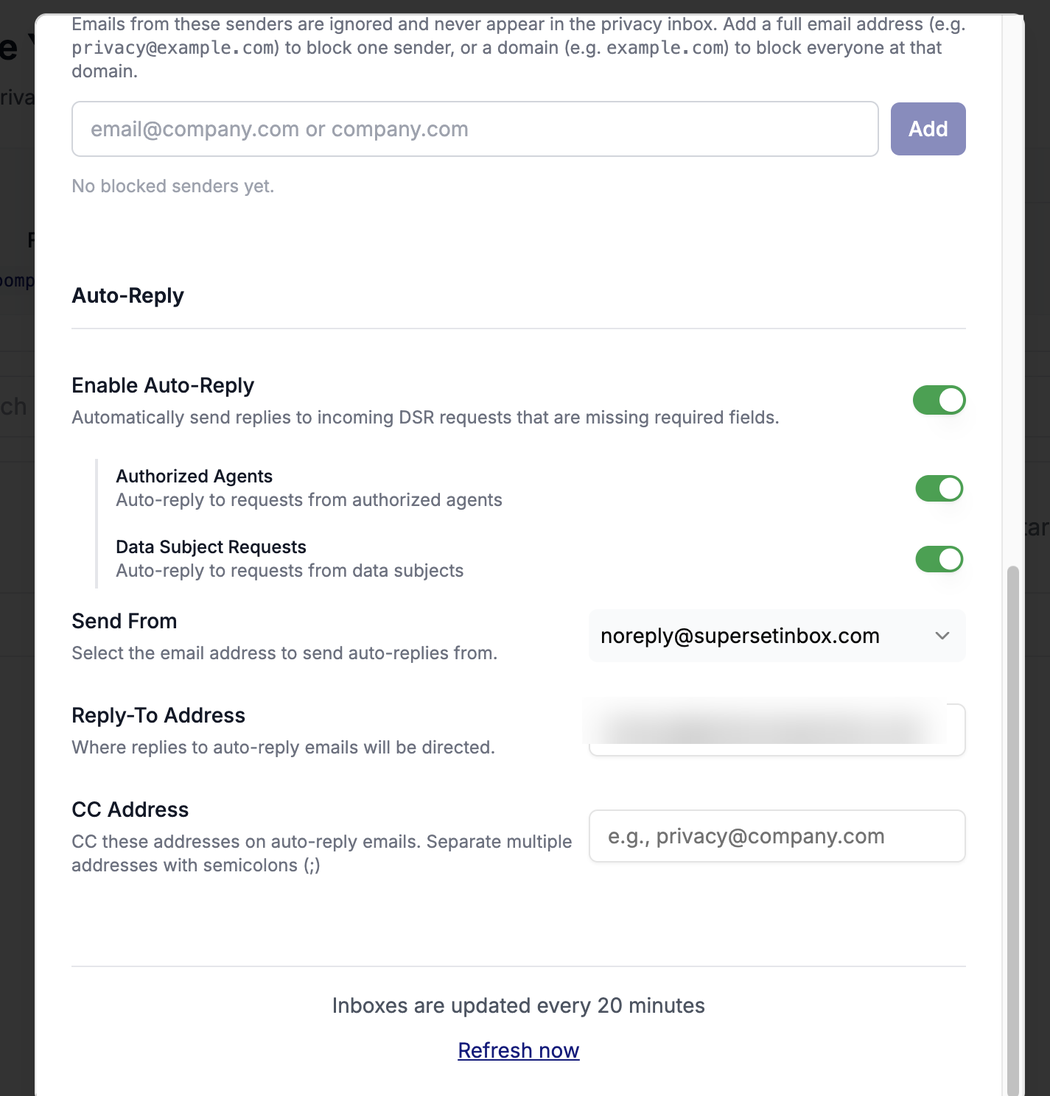
- The Privacy Inbox view itself updates every 20 minutes. If you sent a test message and don't see it yet, give it a beat, or hit Refresh now at the bottom of the settings modal.
Send a test message
Before you walk away from setup, send a test from another address to your privacy mailbox with a subject line like "test deletion request." It should land in the Privacy Inbox list within about 15 minutes, classified as a DSR Request.
If it doesn't show up, open Configure Inbox Settings, check that your inbox shows as Connected, and use Refresh now.
Configure your triage and auto-reply settings
While Configure Inbox Settings is open, work through these settings, top to bottom:
- Forwarding Address Where Superset forwards non-DSR or unclassifiable emails (regulators, journalists, anything ambiguous) to your responsible human for triage. Drop in your compliance or legal contact. Separate multiple addresses with semicolons.
- Forward "Other" Emails Toggle this on if you want every non-DSR email forwarded to your triage address the moment it arrives. Most customers leave this on. Off means non-DSRs sit in Superset for batch review.
- Forward "Needs Info" Emails Applies to DSRs Superset received but could not fully process because they are missing required fields. On if you want a human to chase the requestor; off if your team prefers to handle missing-info follow-up inside Superset.
-
Blocked Senders
Add a full address (e.g.
[email protected]) or a whole domain (e.g.example.com) to ignore mail from senders you never want to see in the inbox. - Auto-Reply Toggle Enable Auto-Reply and Superset sends an immediate acknowledgment to anyone whose request is missing required fields. Scope it with two sub-toggles, Authorized Agents and Data Subject Requests, and set the Send From address, the Reply-To, and an optional CC. Turn this on. It cuts your follow-up volume, sets expectations on response timing, and is the single best defense against "needs info" requests quietly piling up untouched. Outgoing replies carry your organization's name and signature, which you can set, so consumers see your brand rather than Superset's. Replies go to the requester alone: if a request was emailed to several companies at once, the other recipients are never replied to or CC'd.
Turn on Status Emails
The status digest is useful, and it lives on your personal account, not on the Privacy Inbox settings page.
Open ai.trustsuperset.com/settings/user. Under Email Preferences, toggle on Status Emails and use the Frequency selector to choose how often it arrives.
You'll get a summary of DSR activity and items needing attention, broken down by request type so you can see how your volume actually composes.
Filter and sort the Privacy Inbox
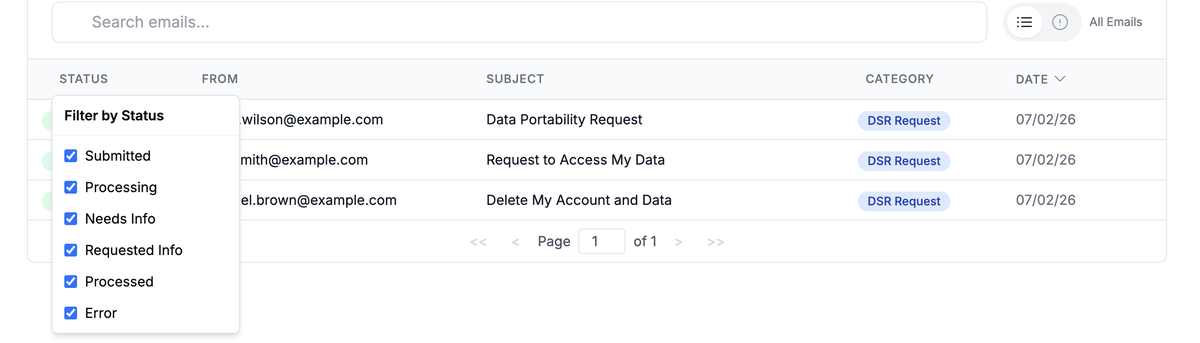
The email list has a toggle to show All Emails or Needs Info, and has columns for Status, From, Subject, Category, and Date. The headers double as filters and sorts, so you can slice the list without leaving the page:
- Filter by Status or Category. Click the Status header to filter by processing state (Submitted, Processing, Needs Info, Requested Info, Processed, Error), or the Category header to filter by how Superset classified the email (DSR Request, Authorized Agent, Bulk Request, Other, Outgoing). Tick the values you want to keep in view and the rest drop out.
- Sort by From, Subject, or Date. Click the From, Subject, or Date header to sort by that column, and click again to reverse the order.
Jump straight to the processed DSR
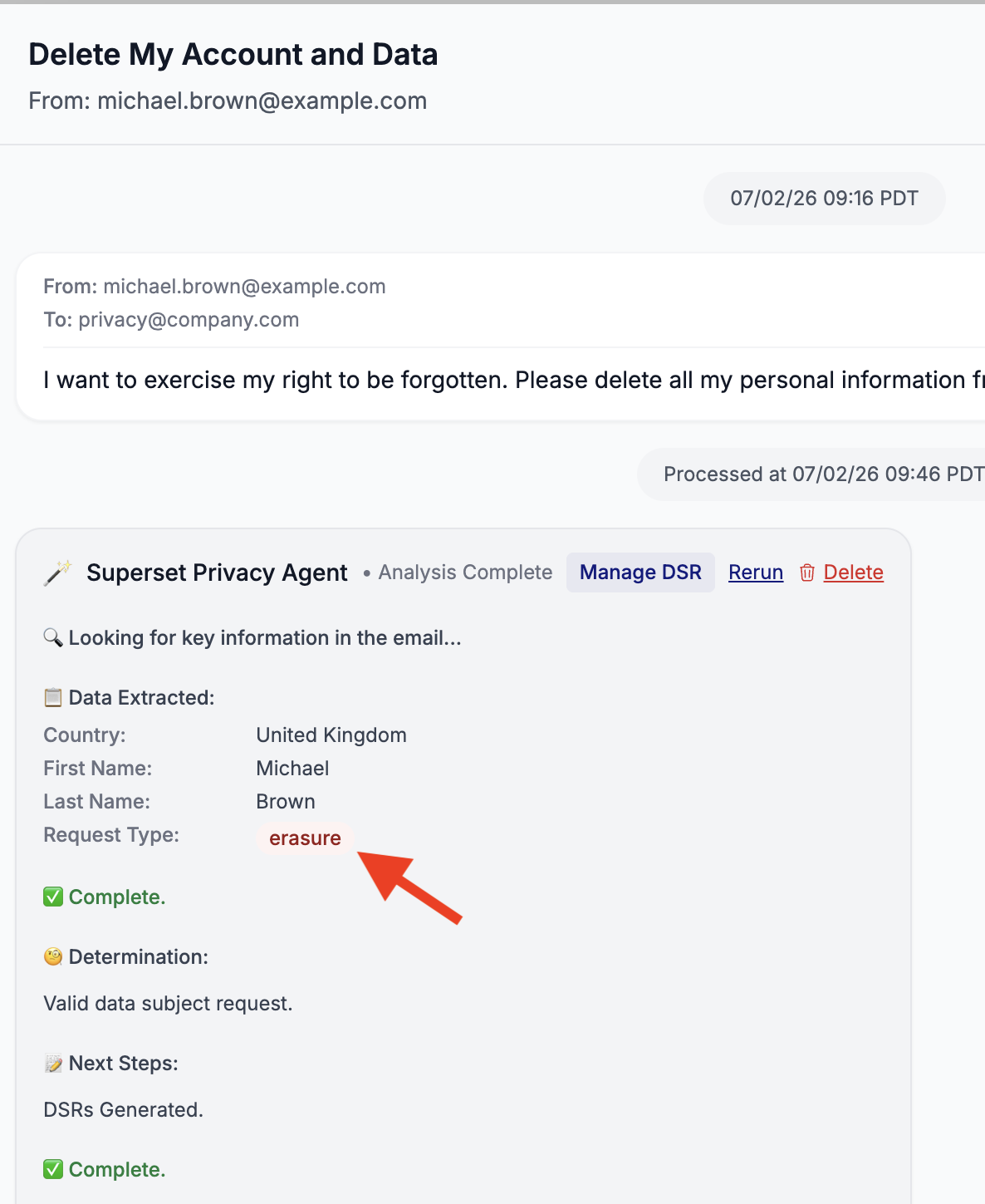
Click any email to open it. You'll see the original message alongside the Superset Privacy Agent analysis: the data it extracted, its determination, and the request type it detected. Once Superset has processed the email into a DSR, click its request type pill (here, erasure) to jump straight to the matching request in DSR Manager, ready to work.