
Getting started with your DROP module.
Four things to wire up: your API key, how batches reach your records, a clean Sandbox run, and the flip to production. The first two are one-sitting config. The third is where you iterate, and the iteration is the whole point. The fourth is quick once the third runs clean.
Hey y'all, this is how you get your DROP module live. API key from CalPrivacy into Superset, a matching path picked, Sandbox running clean, production flipped on. DROP is live, and every download starts a 45-day clock: report back on that batch and pull the next list before it runs out.
Here's the split. DROP is pull-based, which means California does not push deletion lists to you. Every registered broker is responsible for pulling them, and missing a pull is the same as missing a request. That side is on us. Superset polls DROP every day on your behalf, gets each batch to you in a predictable format, takes your status codes back, and uploads the response. What we never do is see your consumer records. They live in your systems, not ours, so the matching happens on your side: on your backend, or right in your browser with Normalize and Hash. The setup below is what wires the two halves together.
Connect to DROP
Subscribe to identifier lists in CalPrivacy's Data Broker Portal, generate a Sandbox API key, and paste it into Superset.
Get batches to your records
Pick how each batch reaches your data: Superset pushes to a webhook on your backend, your code pulls through the API, or you run it through Normalize and Hash in your browser.
Test in the Sandbox
Run a batch against the synthetic dataset, see what matched and what did not, fix your normalization, and rerun until clean.
Flip to production
Generate a Production API key, confirm your production matching setup, and start pulling real requests.
Steps 1 and 2 are config. Knock 'em out in a sitting. Step 3 is the iteration loop: run a batch, see what matched and what didn't, fix your normalization, rerun. Step 4 is going live for real.
Step 1: Connect to DROP
Subscribe in CalPrivacy. Paste the API key here.
Open ai.trustsuperset.com/drop/api-key.
Two things have to happen before Superset can pull anything from California: subscribe to identifier lists in CalPrivacy's Data Broker Portal, and paste the resulting API key into Superset.
Subscribe to identifier lists
DROP has six consumer identifier lists. Subscribe to every list you could plausibly use to match a consumer, and you need at least one to use DROP at all.
Subscribe to the lists that match what you actually store. Don't store phone numbers? Don't subscribe to PHONE. Every list you subscribe to is one you're committing to match against on every batch, so be honest with yourself about what you've got.
Generate your Sandbox API key
The portal issues two API keys, Sandbox and Production, generated separately. The DROP module in Superset has the same two environments, switched with the Sandbox / Production toggle at the top of the module, and each stores its own key.
Start with a Sandbox key. California's Sandbox is the only environment that grades your matching performance, so it's the right place to prove your setup before real consumer data is in scope. The Production key comes in Step 4, once your Sandbox runs are clean.
In the Data Broker Portal, log in with your registered account, navigate to Sandbox Environment, confirm your list selection, and generate a new API key.
Copy that key. Back in Superset on the API Key & Lists page, paste it into the Paste API key field and hit Continue. Your API key is encrypted in transit and at rest.
Step 2: Get batches to your records
Push, pull, or hash it in your browser.
Three legs to this: Superset hands you California's deletion requests in batches → you match them against your records and settle on a status code per request → Superset uploads the result to CalPrivacy. You own the middle leg, and there are three ways to run it.
-
Push to a matching endpoint on your backend
Give Superset a URL and it
POSTs each batch to you as it lands. Your endpoint matches and answers with a status code per request. Fully hands-off once it's wired. Details below. - Pull through the Superset API Leave the endpoint blank and have your own code fetch each batch's requests from the API, match them against your data, and report the codes back on your schedule. Details below.
- Normalize and Hash in your browser No code. Load your dataset into the tool at ai.trustsuperset.com/drop/overview, and it hashes your records the way California requires and matches them against your outstanding DROP records, entirely inside your browser. Details below.
Option 1: Push to a matching endpoint on your backend
Open ai.trustsuperset.com/drop/endpoint.
To be crystal clear about whose endpoint this is: it's yours. You're giving Superset a URL on your own backend, and Superset pushes California's requests to it. Sandbox and production each keep their own endpoint configuration (Step 4 covers the production side), and both use the same authorization headers you set here. The endpoint is optional: leave it blank and Superset holds each batch for you to pull through the API or match in your browser instead.
What Superset sends you
Every day, Superset pulls the latest deletion requests from DROP and forwards them to your endpoint in batches. Recommended size: 500 records per request. Each record has exactly one populated identifier field. Every other field is null.
Example request body:
{
  "batch_id": "c2e4a6fa-8d44-4f6f-9ef9-7d4f1f1d8e6a",
  "sync_record_id": "c2e4a6fa-8d44-4f6f-9ef9-7d4f1f1d8e6a",
  "environment": "sandbox",
  "list_type": "EMAIL",
  "request_count": 500,
  "requests": [
    {
      "id": "7a3d9c73-39d8-40a5-bfcb-31d123456789",
      "drop_id": 679,
      "ndz": null,
      "email": "KA18MT/ph6IHYjzT9zwETySDQyvSh87YuoSBpOQtkhE=",
      "phone": null,
      "maid": null,
      "nvin": null,
      "ctvid": null
    }
  ]
}
Parse requests[]. Use id as Superset's canonical record ID in your response. Treat drop_id as California's work item ID. You'll need it if you ever audit a specific request back to the state.
The environment field tells you which pipeline a batch came from: sandbox identifiers are synthetic test data, production identifiers are real consumer requests. You can also use {{environment}} in your endpoint URL or headers to route the two apart on your side.
How matching works
For each record, hash your records using SHA-256 with Base64 output, following California's normalization rules, then compare against the hash Superset sent you. Normalization rules differ per identifier type. The full canonicalization rules live in CalPrivacy's official spec.
The most common normalization bugs are also the cheapest to catch: skipping transliteration on accented characters, holding onto whitespace, forgetting to lowercase before hashing. The Sandbox in Step 3 is built to surface those before they cost you a real consumer.
What you send back
Return JSON with one update per request. Each update needs just the Superset request id and the DROP outcome code. Four possible outcomes per record, mapped to California's official status codes:
-
Not found
response_status_code: 5. No match after completing the matching process. -
Deleted
response_status_code: 3. Exactly one record matches; delete that consumer's non-exempt data on your side. -
Opted out
response_status_code: 4. Multiple consumers are linked to the same identifier; opt them all out of sale or sharing. -
Exempted
response_status_code: 2. The match is real but the data is retained under an exemption such as Civil Code §1798.99.86(c)(2).
Example response body:
{
  "updates": [
    { "id": "7a3d9c73-39d8-40a5-bfcb-31d123456789", "response_status_code": 3 },
    { "id": "16d9225f-b0c9-4a14-89ce-5b31abcdef12", "response_status_code": 5 },
    { "id": "d3f1f996-cd1e-4e4e-a3c6-82cdabcdef34", "response_status_code": 4 }
  ]
}
California's official result codes are 2, 3, 4, and 5. Full status code reference and file schemas in CalPrivacy's official spec.
Point Superset at your endpoint
On the Matching Endpoint page (also reachable from DROP Settings under Advanced), drop in the URL Superset should POST to, leave the method as POST, and add any headers you need (auth tokens, signing keys) as a JSON object. Then hit Send test batch to confirm Superset can reach your endpoint and parse a response.
Content-Type: application/json, response not parseable as JSON, status codes outside the supported set.
Option 2: Pull through the Superset API
Same contract as the push path (same hashes, same four outcome codes), but your code sets the pace. Superset downloads each batch and holds it; you fetch the requests, match them, and report the codes back. Full endpoint, field, and example reference lives in the developer docs at docs.trustsuperset.com. Every call is authenticated with an API key passed as a bearer token (Authorization: Bearer <token>); to request a key, email [email protected].
Three endpoints, all scoped to an environment in the path (sandbox or production):
-
List DROP records
GET /drop/{environment}/requests/. Filter bystatus,list_type, orbatch_id.status=downloadedis your work queue: everything Superset has pulled that nobody has claimed yet. -
Get a DROP record
GET /drop/{environment}/requests/{id}/. One record by its Supersetid. -
Bulk update statuses
POST /drop/{environment}/requests/status-update/. Mark recordsmatching(claimed, answer coming) orcompletedwith aresponse_status_codeof 2, 3, 4, or 5.
Example status update:
POST /drop/production/requests/status-update/
{
  "updates": [
    { "id": "3559c8eb-d51f-4f24-8771-d542b232a59d", "status": "matching" },
    { "id": "c819ed3e-0efc-4349-8298-d5618beee6fd", "status": "completed", "response_status_code": 3 }
  ]
}
A record moves downloaded → matching → completed, and from completed Superset takes it the rest of the way to DROP. Use id (Superset's UUID) as your key everywhere; drop_id is California's work item ID and is only unique within an environment and list type. An id from the other environment returns a 404 on purpose, so an integration built against sandbox can't answer real consumer requests by accident.
status=downloaded is a live filter, not a snapshot. Every record you claim or answer leaves the list, so if you also advance offset you'll step over records you were never handed and they'll sit in downloaded indefinitely. Fetch a page, claim it as matching (or report it), then fetch the next page at offset=0. Repeat until a page comes back empty.
Option 3: Normalize and Hash in your browser
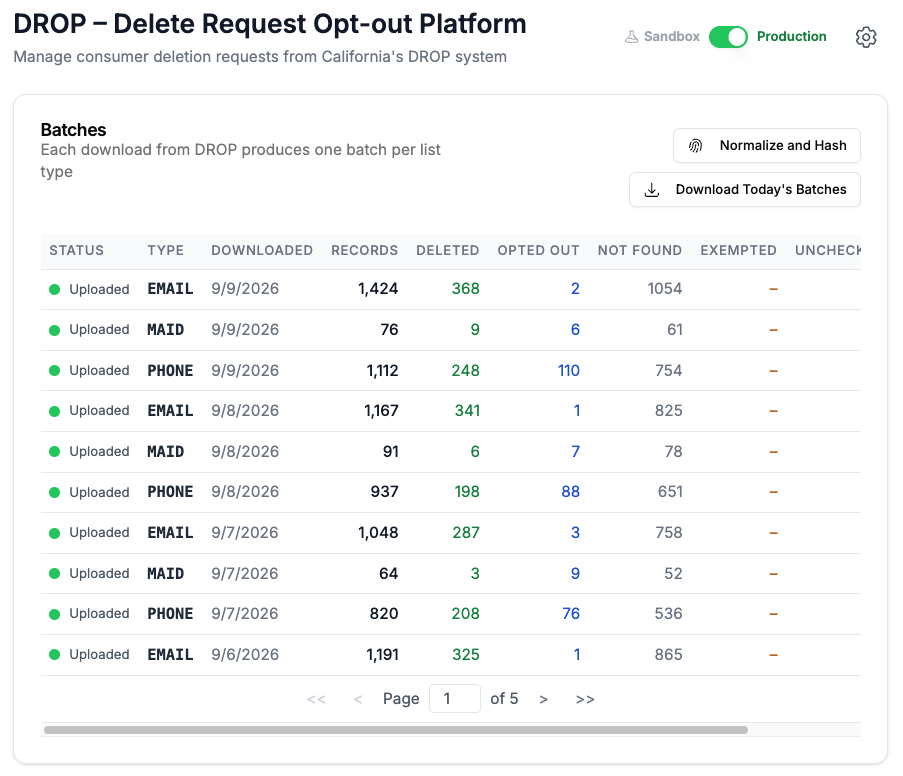
Open ai.trustsuperset.com/drop/overview and click Normalize and Hash, next to Download Today's Batches.
If you've got your dataset as a file but nobody to write the hashing and matching code, this is the path. You load the file, the tool standardizes your identifiers and hashes them the way California's rules require, then matches the result against the DROP records waiting in the module. Everything runs in your browser. The file never leaves your device, and Superset never sees your data.
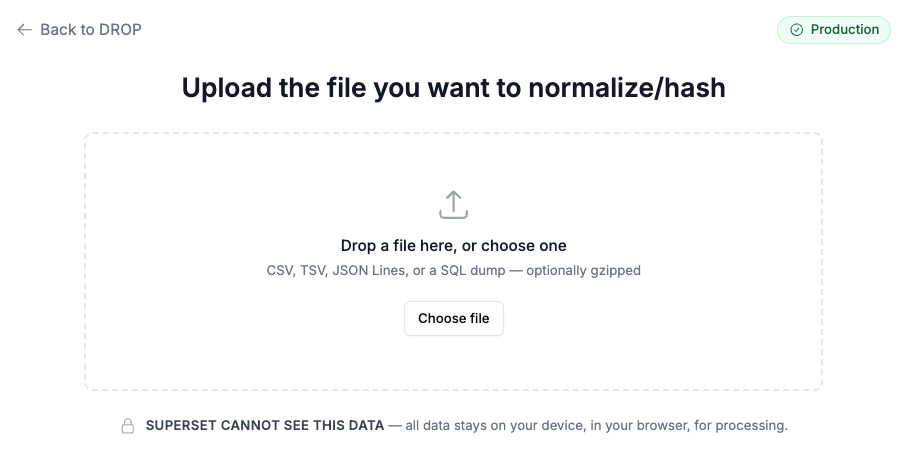
Load your file
Drop in a CSV, TSV, JSON Lines, or SQL dump, gzipped or not. It's built for real tables, tens of millions of rows included, and a small file finishes in seconds.
Confirm the columns to hash
The tool reads a sample of your file, guesses which columns hold DROP identifiers, and shows you why (header says "FIRSTNAME", values look like postal codes). Check its guesses. Anything it missed, set yourself with the Treat as dropdown: first name, last name, date of birth, ZIP / postal code, email, phone, mobile ad ID, vehicle VIN, or connected-TV ID. A date-of-birth column with an unusual header is the typical one to fix by hand. Everything else stays Don't hash. Then click Hash and pick where to save the result.
What you get back is your file with a new column appended: the DROP-formatted identifier for each record, ready to compare against what California sends.
Match against DROP lists
On the finished screen, click Match against DROP lists. The tool compares your hashed identifiers against the outstanding DROP records in whichever environment the toggle is on, and the batch on the DROP overview fills in with the results: which requests found no record, which matched exactly one, and which matched more than one. Deleting the matched consumers' data in your own systems is still your job; the tool tells you which ones.
Step 3: Test in the Sandbox
Iterate until your hashing is right.
Open ai.trustsuperset.com/drop/overview.
This is the iteration step, and it's highly recommended before you go anywhere near production: the Sandbox grades your matching against California's spec and tells you what you got wrong. Synthetic dataset on California's side, your own normalized copy on your side. Run a batch, see what matched and what didn't, fix your normalization, rerun.
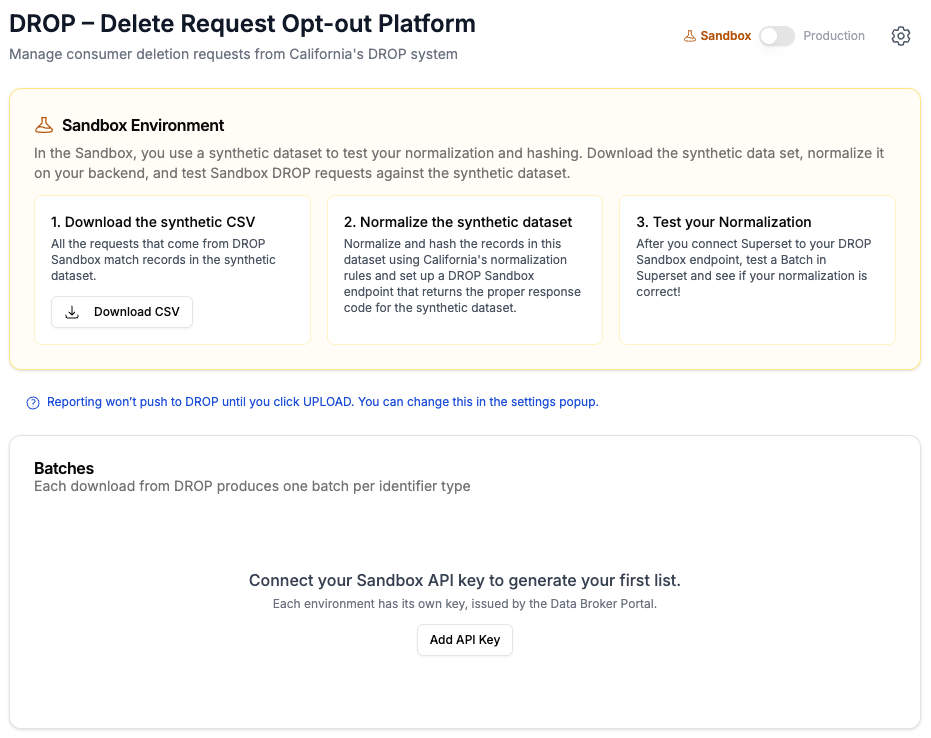
Download the synthetic CSV
Click Download CSV to grab the synthetic dataset. Same CSV the Sandbox environment is going to send requests against. Think of it as a fake customer database for testing.
Normalize the synthetic dataset
Apply California's normalization rules and SHA-256 Base64 hashing to the records in your copy of the synthetic CSV, and stand up your matching path to look up incoming hashes against this normalized set. On the browser path, this step is just running the synthetic CSV through Normalize and Hash.
This is where you commit, on your side, to the canonicalization rules in CalPrivacy's official spec. The Sandbox is graded against exact-match. No "close enough."
Run a Sandbox batch
In Superset, trigger a test batch. Superset pulls a batch from California's Sandbox API and hands it to your matching path exactly as it would in production: pushed to your endpoint, pulled by your code, or matched in the browser. You answer; Superset records the response.
For each data subject you'll see three things side by side: the hash that was submitted, the response you returned, and the response Superset expected. That last column is the one that matters. When they don't match, you've got a normalization bug, and Superset will tell you which records hit it so you can fix them on your side.
A typical first run: a mix of matches, mismatches, and not-founds. Some of the not-founds are real (the synthetic dataset doesn't contain everyone California's Sandbox asks about). Some of the mismatches are normalization bugs. The point of iteration is to drive the mismatches to zero.
Fix, rerun, repeat
Fix your normalization, save your changes, rerun. No cap on Sandbox runs and no consumer data on the line. Burn through as many cycles as it takes.
Step 4: Flip to production
A production key, a production matching setup, and you're live.
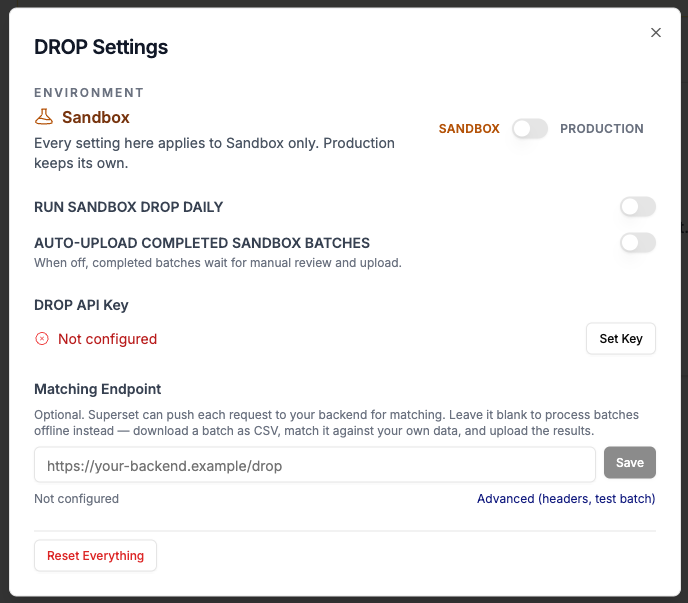
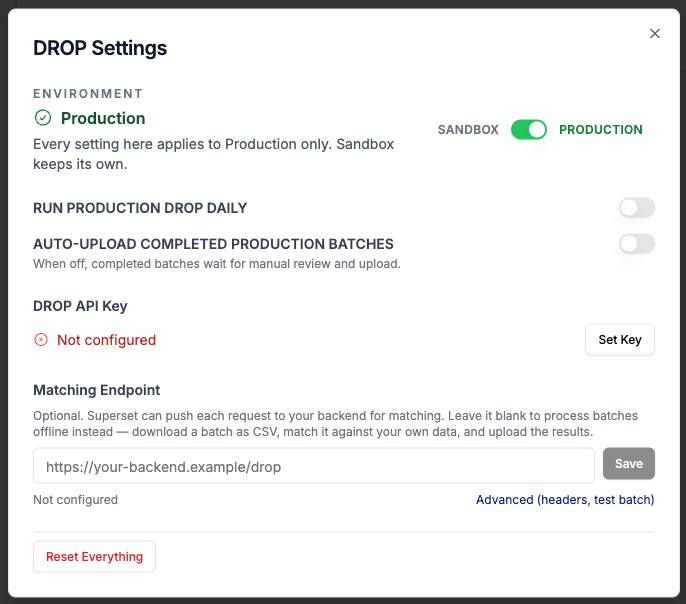
Once your Sandbox runs are clean, switch the module's Sandbox / Production toggle to Production and work through the same setup in the new environment:
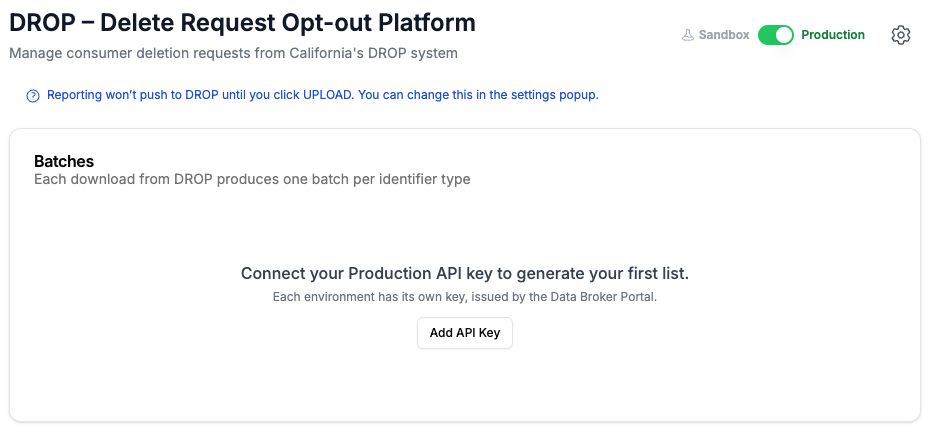
- Generate a Production API key Same flow as Step 1, but in the portal's production environment instead of the Sandbox. It's a separate key generated independently; your Sandbox key doesn't carry over.
-
Confirm your production matching setup
Production keeps its own configuration. Pushing? The production endpoint still points at your own backend and uses the same authorization headers you set in Step 2. Pulling? Point your code at the
productionpath of the API. Matching in the browser? The toggle has to be on Production before you match. - Set your run and upload behavior In DROP Settings, turn on Run Production DROP Daily so Superset polls every day, and decide whether to enable Auto-Upload Ready Production Batches or review and upload each batch yourself (the default).
- Decide who hears about failures Under DROP Notifications, add the people to email when records in a batch fail and need someone to look. With nobody listed, those notices go to your registry recipients in Settings instead. Turn on Forward DROP Updates to also send CalPrivacy's own emails to the same recipients (lists ready to download, uploads received, upload responses and upload errors); that one applies to both environments.
Once production is on:
-
Production sync runs dailyWith Run Production DROP Daily on, Superset polls DROP every day, downloads the latest batch, and hands it to your matching path. DROP itself processes new data on a daily cadence, so daily polling means you see requests the moment they're available.
-
Daily maintenance windowCalifornia's DROP API closes between 1:00 AM and 3:00 AM Pacific Time for daily batch processing. Plan around it for time-sensitive integration testing.
-
You control uploadsBy default, a ready batch waits until you click Upload before anything goes back to California. Enable Auto-Upload Ready Production Batches in DROP Settings if you want clean batches sent automatically. Failed batches surface in your DROP dashboard for review either way.
-
A record of every batchFor every batch Superset pulls, you've got a record of how many were deleted, opted out, not found, and exempted, plus the download and upload timestamps. That's your audit trail when CalPrivacy comes asking.
A few things to be clear about
You own normalization
We can't normalize your records for you on our side, because that data lives in your systems, not ours. We hand you correctly-formatted hashes from California; matching them against your records is yours, whether your backend does it or you run your file through Normalize and Hash in your browser (which is exactly why that tool never uploads anything). If you change your data formats (a CRM migration, a phone number cleanup, anything that touches identifier shape) you need to confirm your normalization still produces the same hashes California is sending. The Sandbox is the right place to verify after any change.
Treat the Sandbox as long-running, not a one-shot
Most customers spend more than one round in here before going live, and there's no downside to staying longer. The point is to drive your mismatches to zero on synthetic data before a real consumer is anywhere in scope.
DROP is distinct from your DSR Manager queue
Webform and email-submitted DSRs flow into your DSR Manager queue at ai.trustsuperset.com/dsars/manage. DROP requests come from California's centralized platform, arrive pre-hashed, and don't show up in the DSR Manager queue. Two systems running in parallel, not in sequence. If you haven't onboarded DSR Manager yet, the guide is at trustsuperset.com/docs/dsr-manager.
One identifier per request
Each DROP request has exactly one populated identifier field. If California asks about an email hash, every other field (phone, MAID, NVIN, NDZ, CTVID) is null on that request. Don't try to match across fields.
One 45-day cycle: download, report, download again
Per CalPrivacy, you must download your lists at least once every 45 days, and report the status of each request within 45 days of downloading it. Count the day you download as day 1. By day 45 you need to have reported back on every request in that batch and downloaded your next list, which starts the next count. We poll daily, which keeps you comfortably ahead of both obligations.