
Getting your portal logins and 2FA codes.
Where your state portal login emails go, who receives them, and how to add your engineers so nobody's stuck at a 2FA screen.
When Superset registers your company as a data broker, your state portal accounts are created with a Superset-managed forwarding address. So login emails and 2FA codes don't land in your inbox by default. They land in a forwarding group you control, and adding yourself takes about 30 seconds.
Why your codes don't come to your inbox
When we file your registrations, each portal account is set up with your Superset forwarding address: <your-domain>@trustsuperset.com. One address covers every state registry account we manage for you, including California's Data Broker Portal, which is also your DROP account.
Everything a portal sends goes to that address: login links, 2FA codes, registration confirmations, and ongoing notices. Whoever is on your Registry Forwarding Emails list receives all of it.
See who receives portal email
Open Organization Settings at ai.trustsuperset.com/settings/organization and select the Organization tab. The Registry Forwarding Emails card lists every address that currently receives your registry confirmation emails and 2FA codes. If a teammate isn't on that list, portal mail isn't reaching them.
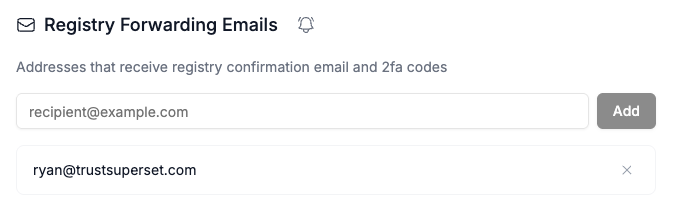
Add your team
Anyone who signs in to Superset with an email on your organization's domain is added to the list automatically. To add someone else, type their email into the field and click Add. Done. They'll receive everything the portals send from then on.
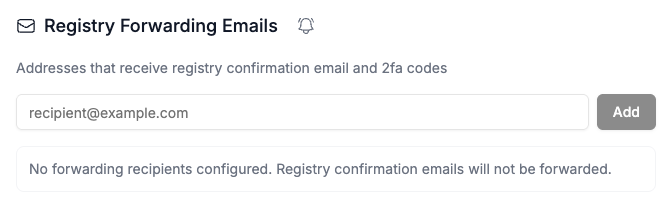
Remove someone
Click the X next to their email. Useful when an engineer finishes an integration or someone leaves the company.
The sign-in flow in practice
Say your engineer needs to log into California's Data Broker Portal to generate a DROP API key:
- Make sure they're on the Registry Forwarding Emails list.
- At the portal, they sign in with your registered account. The account email is your
<your-domain>@trustsuperset.comaddress. If they don't have the portal account's password, email [email protected] and we'll get them access. - When the portal sends a login code, everyone on the list receives it. Enter it and they're in.
<your-domain>@trustsuperset.com) handles portal account mail. Your privacy inbox forwarding address (<your-domain>@supersetinbox.com) is where consumer privacy emails go for DSR Manager. Adding someone to one doesn't touch the other.